
From a problem to a solution.
Connect to a customer’s computer, send the file they need, or help someone at home. All from one app.
An encrypted connection
RSA key exchange and 256-bit AES encryption protect data transferred during your session.
Know what you’re running
Digitally signed program files let you check the publisher before opening the app.
Help friends and family for free
Personal use does not require a paid plan. Download the app and get started without an account.
No router setup
When a direct connection is unavailable, the app can connect through a relay server.
An ID and a password
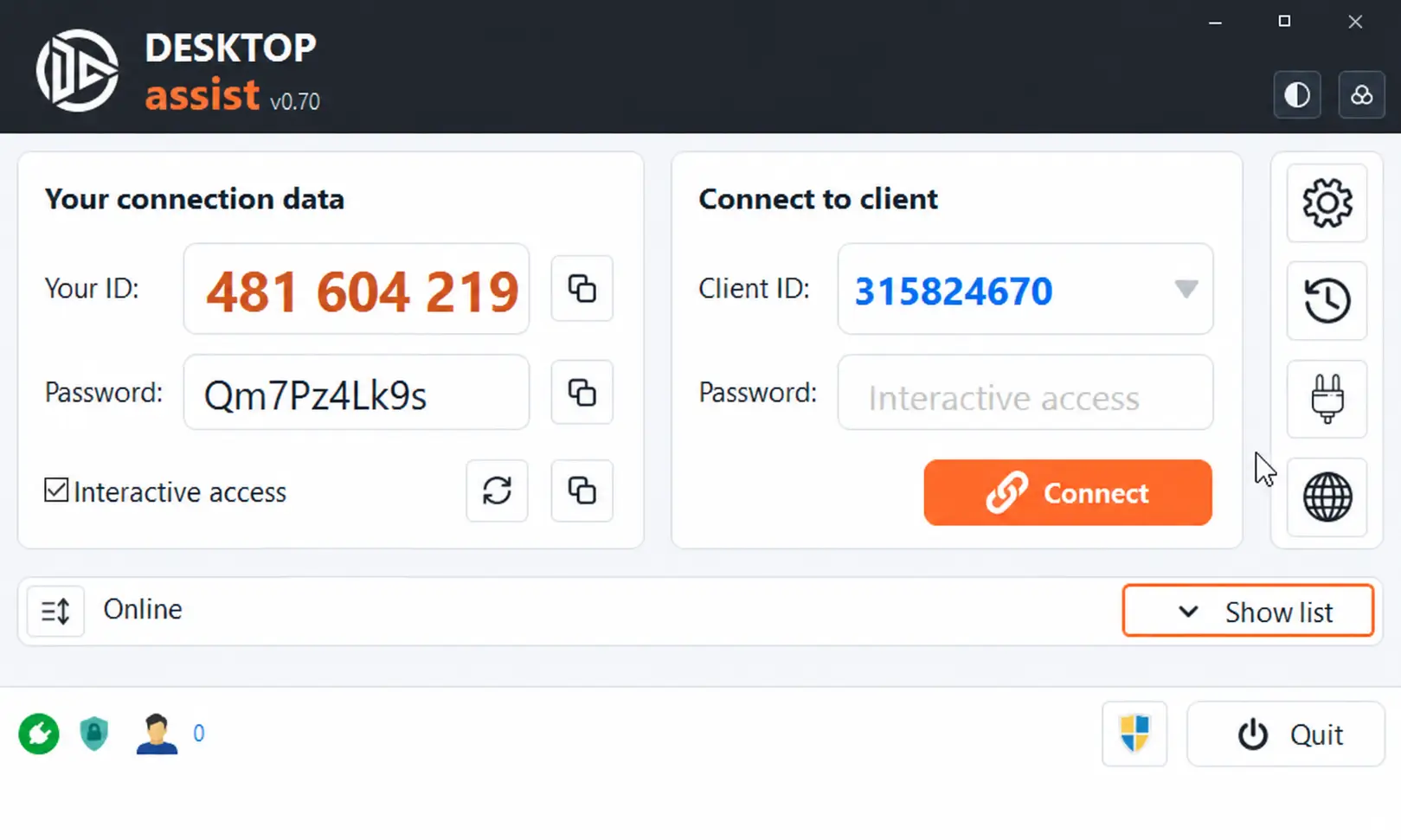
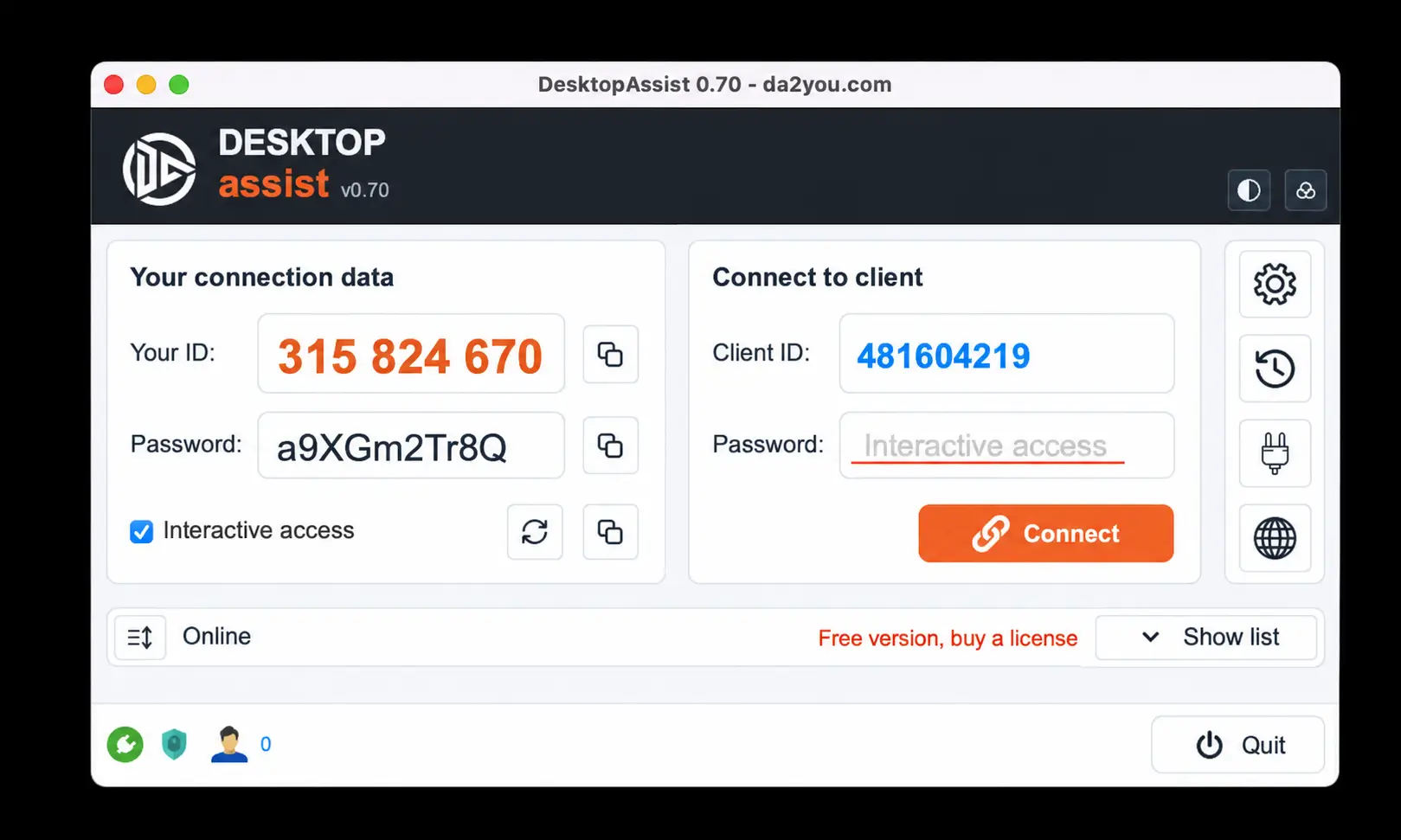
Each computer has its own ID. A new session password is generated when the app starts.
Screen, files and clipboard
Control the remote desktop, transfer files and copy text between computers.
Address book
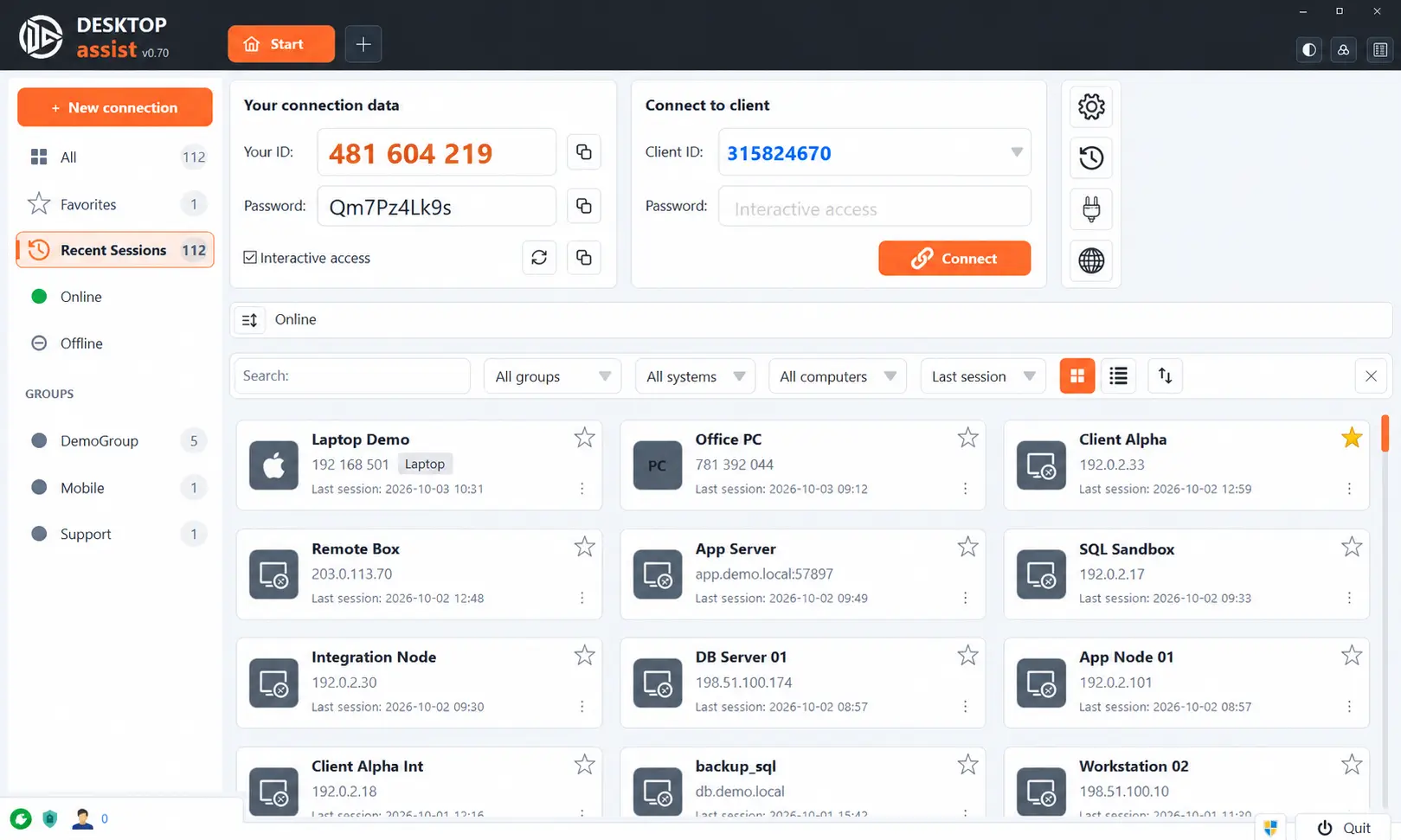
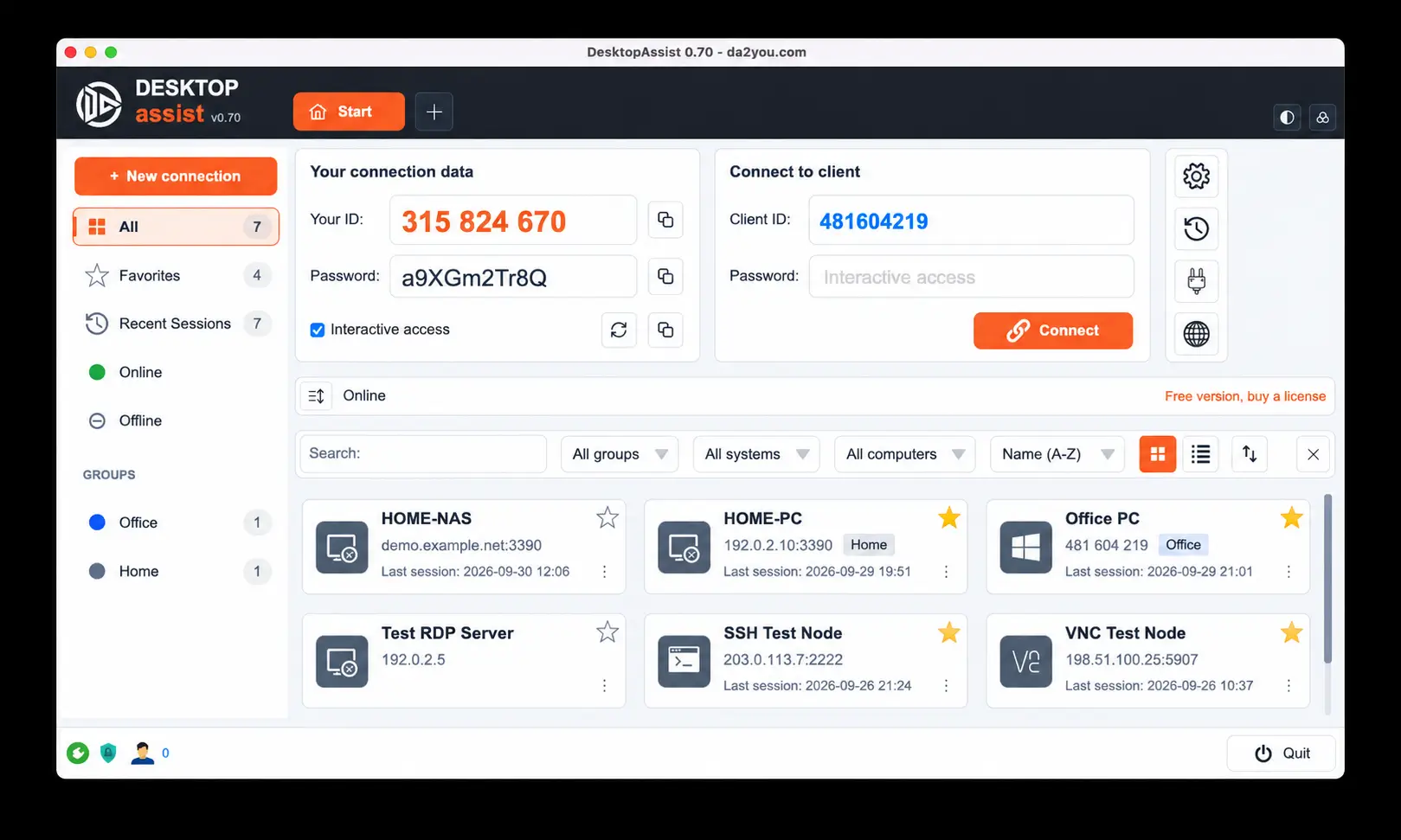
Computers and servers saved in one place, with groups, favorites, search and sorting by last session.
Sessions in tabs
Each connection opens in its own tab. Drag a tab out of the app to give it a separate window.
A fresh look
Light, dark or cyberpunk theme and six accent colors. A small window shows only what you need for quick help.
All your connections in one window.
Plugins add new connection types. Open a Windows server over RDP, a console over SSH, a computer running VNC or a router’s web panel in a tab, right next to your DesktopAssist sessions.
Windows Remote Desktop
Connect to Windows computers and servers over RDP. The session runs in a tab and switches to full screen when you need it.
- Windows
- macOS
- Linux
SSH terminal
A console for servers, routers and NAS devices, opened in an app tab next to your other connections.
- Windows
- macOS
- Linux
VNC viewer
Connect to computers running a VNC server, with a two-way text clipboard, scaling and a view-only mode.
- Windows
- macOS
- Linux
Device web panels
Open the web panel of a router, printer, NAS or server management card in a tab, alongside the rest of your equipment.
- Windows
- macOS
- Linux
- Plugins are installed in the app: the plug button opens the Plugins window.
- Import connections from mRemoteNG and .rdp files, and wake a sleeping computer with Wake-on-LAN.
- On Linux, RDP and SSH use the system FreeRDP, xterm and OpenSSH packages, and web panels use WebKitGTK.
- The free version keeps one plugin connection open at a time. Any paid license removes this limit.
Your first connection in three steps.
Open the app on both computers
Download DesktopAssist and ask the other person to open it on their computer.
Ask for their ID and password
They can find both in the app window. Connection details should only be shared with a trusted person.
Connect and help
Enter their details to start an encrypted session. You can now work on the remote desktop.
See what you’ll be working with.
A full window with the address book and session tabs, or a compact one for quick help. This is the new DesktopAssist on Windows, macOS and Linux.
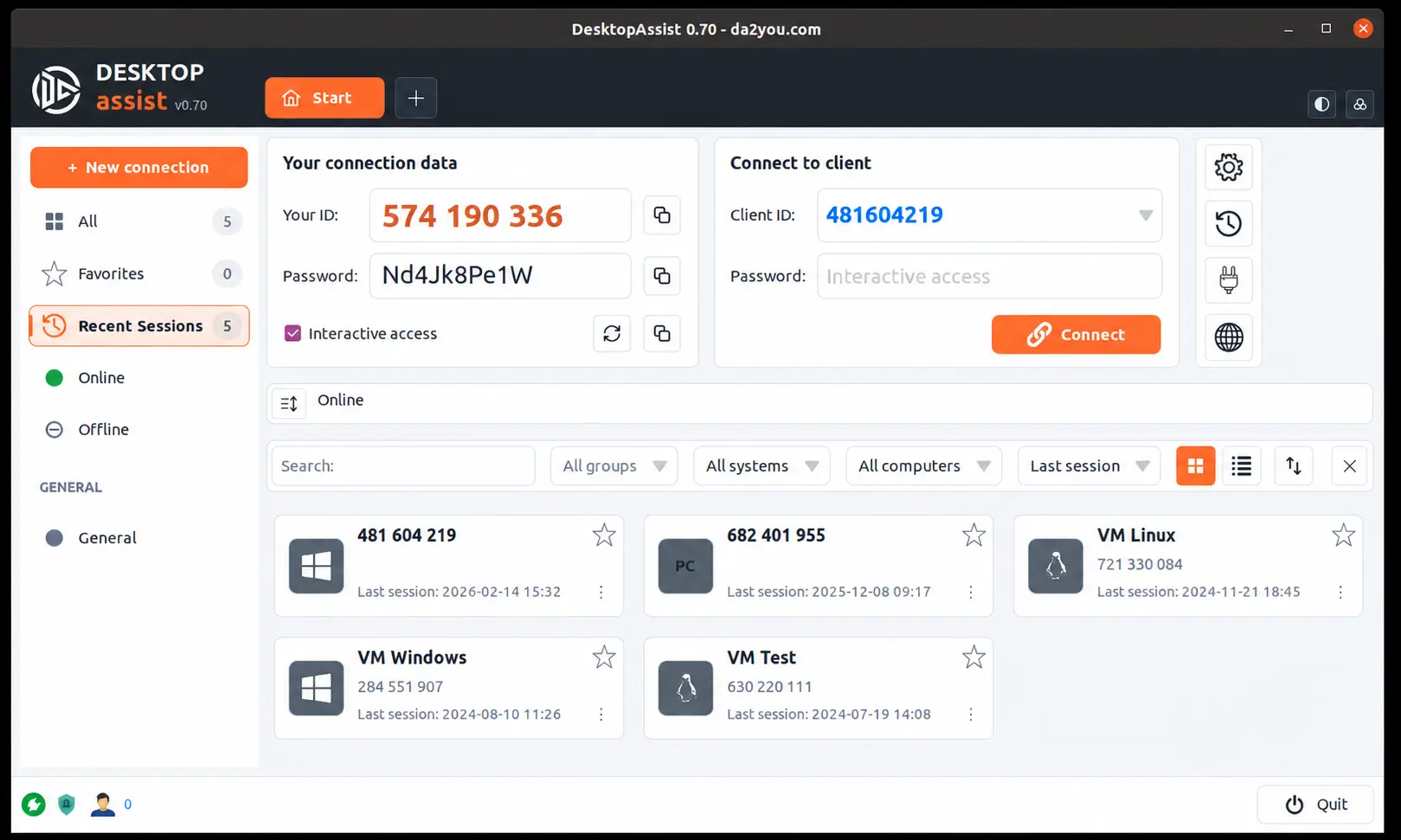
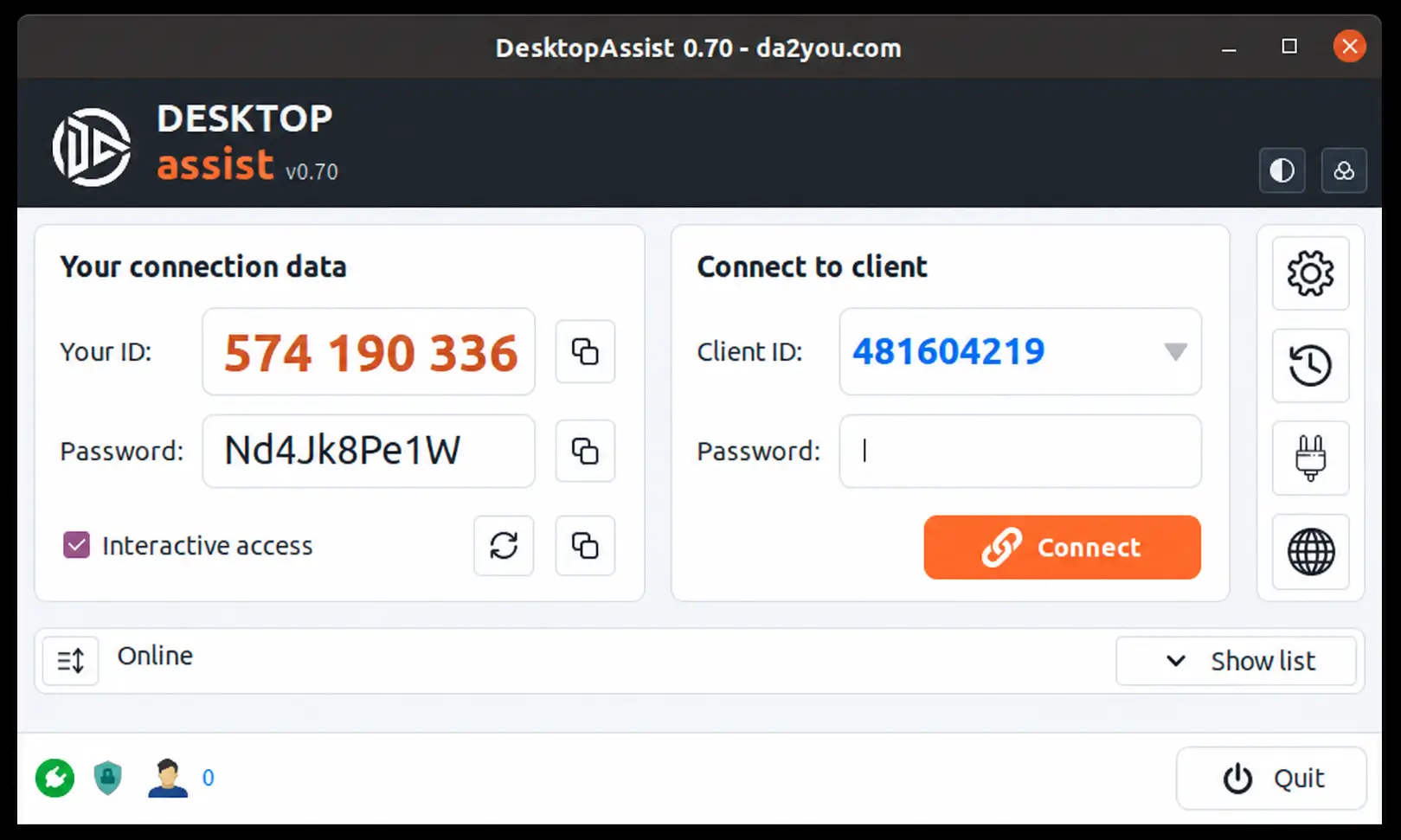
Free at home. Flexible at work.
Choose your currency and the number of simultaneous sessions. Compare subscriptions with a one-time annual payment.
Free
For helping friends and family.
- One Connection
- One plugin connection at a time
- Private Use
- Online Support
Subscription 3 months
For a short project or a busy support season.
- One key, many workstations
- Multiple Connections
- Unlimited plugin connections
- Online Support
- Personalization
- Automatic renewal
Subscription 1 year
For regular customer support throughout the year.
- One key, many workstations
- Multiple Connections
- Unlimited plugin connections
- Online Support
- Personalization
- Automatic renewal
1 year
A full year with one payment and no automatic renewal.
- One key, many workstations
- Multiple Connections
- Unlimited plugin connections
- Online Support
- Personalization
- More payment options
One license, many workstations
You can use the same license key on many workstations. Your plan sets the total number of sessions that can be active at the same time under this license.
Example: a plan for 3 simultaneous sessions lets you run 3 connections in total, however many workstations use the key. A customer who receives help does not need their own paid license.
Let’s talk about what you need.
Need help with the app, choosing a plan or adding your own logo? Tell us how we can help.
- Find a plan for your connection needs.
- Get help with an application issue.
- Create a Windows build with your company’s branding.